
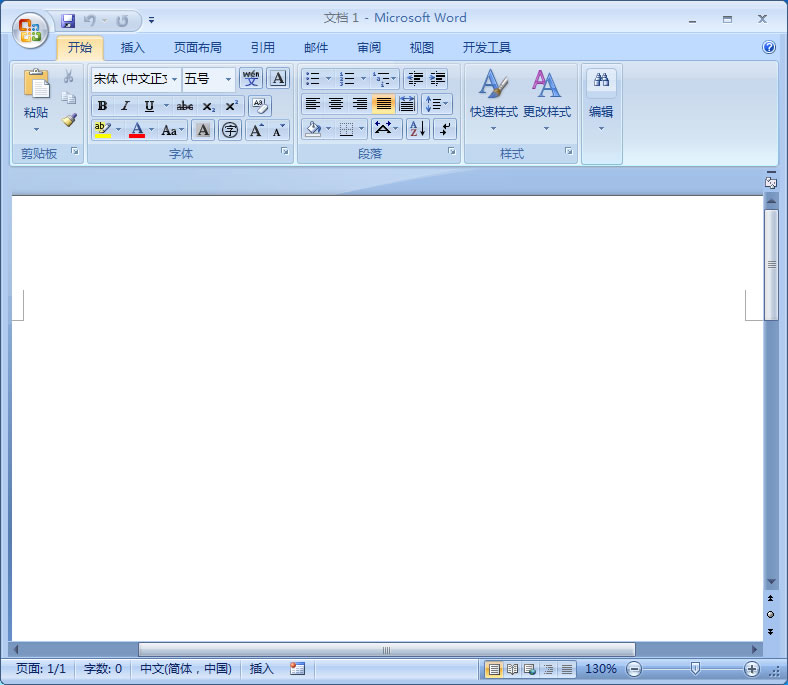
word
使用MS word函数将范围附加到文档是一项非常有用的功能。这个函数可以帮助我们在文档的末尾添加新的内容,而不会覆盖已有的文本。让我们来看一个例子,以更好地理解这个功能。
假设我们有一个已经创建好的word文档,其中包含一些重要的信息。现在,我们想在文档的末尾添加一些新的内容,而不会影响到原有的部分。这时,就可以使用MS word的函数来实现。首先,我们需要在程序中引用MS word的库。这可以通过使用以下代码来完成:Pythonimport win32com.client as win32然后,我们可以使用以下代码来打开现有的word文档:
Pythonword = win32.gencache.EnsureDispatch('word.Application')document = word.Documents.Open("C:\\path\\to\\your\\document.docx")接下来,我们可以使用Range函数来选择要添加内容的范围。例如,我们可以选择文档的末尾部分:Pythonrange_to_append = document.Contentrange_to_append.Collapse(0)range_to_append.InsertParagraphAfter()然后,我们可以使用
InsertAfter函数将新的内容添加到选定的范围中。例如,我们可以添加一段新的文本:Pythonnew_text = "这是新添加的内容。"range_to_append.InsertAfter(new_text)最后,我们需要保存并关闭文档:
Pythondocument.Save()document.Close()通过以上的步骤,我们就成功地使用MS word函数将范围附加到文档中了。这个功能在许多实际应用中非常有用,例如在生成报告、编辑文件等方面。以下是一个完整的示例代码:
Pythonimport win32com.client as win32# 打开现有的word文档word = win32.gencache.EnsureDispatch('word.Application')document = word.Documents.Open("C:\\path\\to\\your\\document.docx")# 选择要添加内容的范围range_to_append = document.Contentrange_to_append.Collapse(0)range_to_append.InsertParagraphAfter()# 添加新的内容new_text = "这是新添加的内容。"range_to_append.InsertAfter(new_text)# 保存并关闭文档document.Save()document.Close()在实际应用中,你可以根据自己的需求来调整代码。你可以选择不同的范围、添加不同的内容,并根据需要进行保存和关闭操作。案例代码:Pythonimport win32com.client as win32# 打开现有的word文档word = win32.gencache.EnsureDispatch('word.Application')document = word.Documents.Open("C:\\path\\to\\your\\document.docx")# 选择要添加内容的范围range_to_append = document.Contentrange_to_append.Collapse(0)range_to_append.InsertParagraphAfter()# 添加新的内容new_text = "这是新添加的内容。"range_to_append.InsertAfter(new_text)# 保存并关闭文档document.Save()document.Close()希望这个简单的示例能够帮助你了解如何使用MS word函数将范围附加到文档中。无论是在工作中还是在个人使用中,这个功能都可以帮助我们更加高效地处理word文档。Copyright © 2025 IZhiDa.com All Rights Reserved.
知答 版权所有 粤ICP备2023042255号
